The i-Nano Research Facility, located at De La Salle University Manila, provides cutting-edge analytical services using state-of-the-art scanning electron microscopy (SEM) and energy-dispersive X-ray spectroscopy (EDX) equipment.
With over 15 years of experience in materials characterization, our team of expert analysts delivers precise, reliable results for academic research, industrial R&D, and quality control applications.
We specialize in surface morphology analysis, elemental composition mapping, failure analysis, and contamination identification across a wide range of materials including metals, ceramics, polymers, and composites.
🔬 Expert Team
Dr. Gil Nonato Santos
Lab Head
Dr. James Salveo Olarve
Lab Coordinator
Mr. Anthony Gerard Santos
Lab Specialist
🧪 Our Services
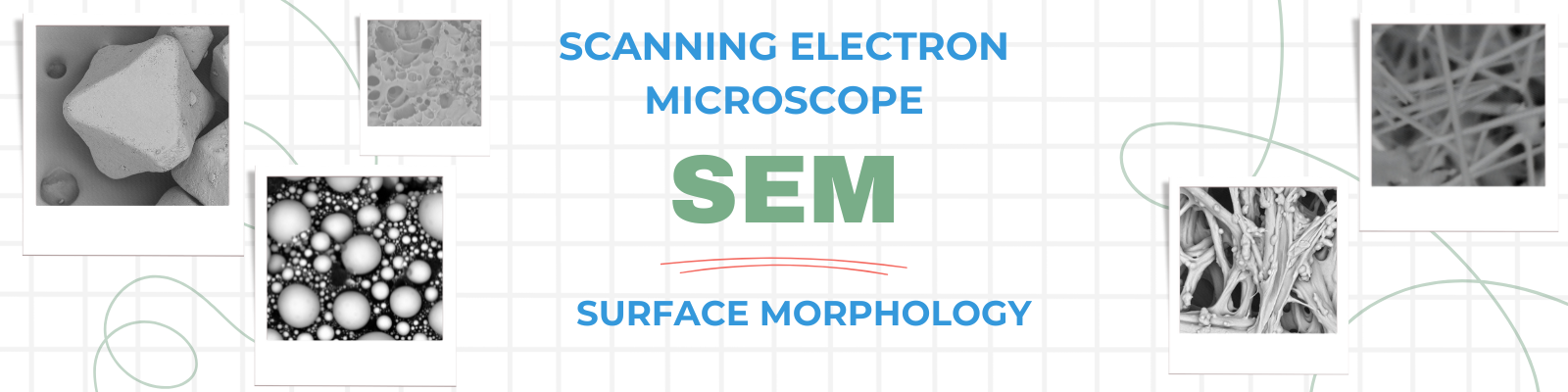
SEM
Scanning Electron Microscopy: Surface Morphology
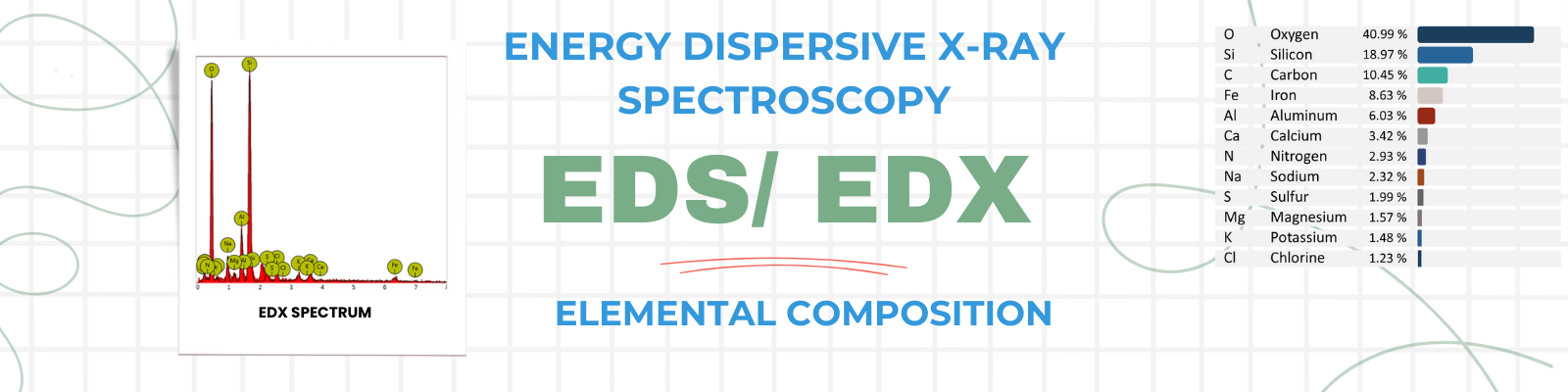
EDS/EDX
Energy Dispersive X-ray Spectroscopy: Elemental Composition
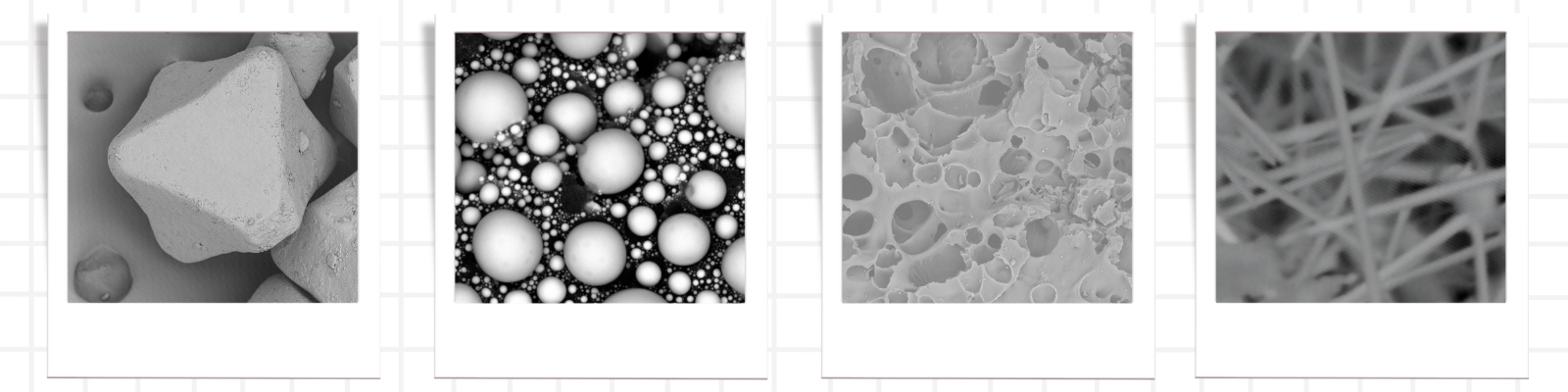
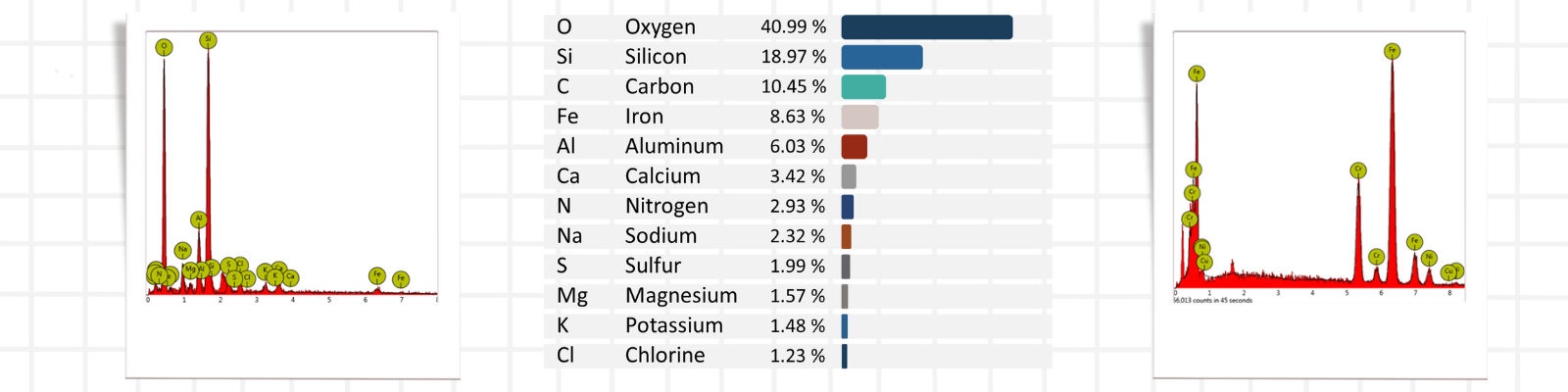
🖼️ Sample Micrographs and Elemental Compositions
A few representative SEM micrographs and EDX results from our lab. Click to enlarge.
📥 Sample Raw Data
Download a sample package containing SEM micrographs and EDX outputs (images, spectrum, and document report data).
We’d love your feedback! Was our service helpful, timely, and clear? Share your experience below.
Recent feedback
Cost of Analysis
Basic SEM
Scanning Electron Microscopy: Surface Morphology
High-quality images
Imaging of up to 3 areas on the sample
Minimum of 12 SEM images
Multiple magnifications (500×–30,000× or higher, as needed)
Raw data files delivered via email
Quick turnaround (depending on the availability of our scientists)
Official Certification of Analysis
SEM and EDX
Scanning Electron Microscopy: Surface Morphology
Energy Dispersive X-ray Spectroscopy: Elemental Composition
Same with Basic SEM plus the folowing
Elemental analysis (EDX) of 3 different areas on the sample
Quantitative concentration: Atomic and Weight
EDS graph spectrum showing characteristic peaks
Elemental mapping
Raw data files delivered via email
Official Certification of Analysis
🧮 Cost Calculator
Bulk pricing: the average cost per sample decreases as sample count increases.
Total Cost ₱—
Sample Preparation Guidelines
Proper sample preparation is essential for obtaining high-quality SEM and EDX results. Only solid, fully dried samples are accepted to ensure safety and prevent instrument contamination. Each sample should be small, clean, and securely packaged in a labeled container. Following these preparation guidelines helps achieve accurate imaging, reliable elemental analysis, and smooth processing of your request.
Allowed vs. Not Allowed Samples for SEM-EDX Analysis
Allowed Samples (Solid Only)
Not Allowed Samples
Powders / powder-like materials
Liquids
Rock-like or mineral samples
Gases
Glass pieces
Samples containing mercury
Plastics / polymers
Radioactive materials
Organic solids (wood, leaves, seeds)
Biological hazards (blood, tissue, pathogens)
Insects (dry and preserved)
Toxic or highly hazardous materials
Teeth / bone fragments
Corrosive chemicals or strongly reactive materials
Rubber pieces
Wet, moist, or damp samples
Paper / cardboard
Samples that may outgas or contaminate the chamber
Textiles / fabric
Sticky, oily, or adhesive substances
1
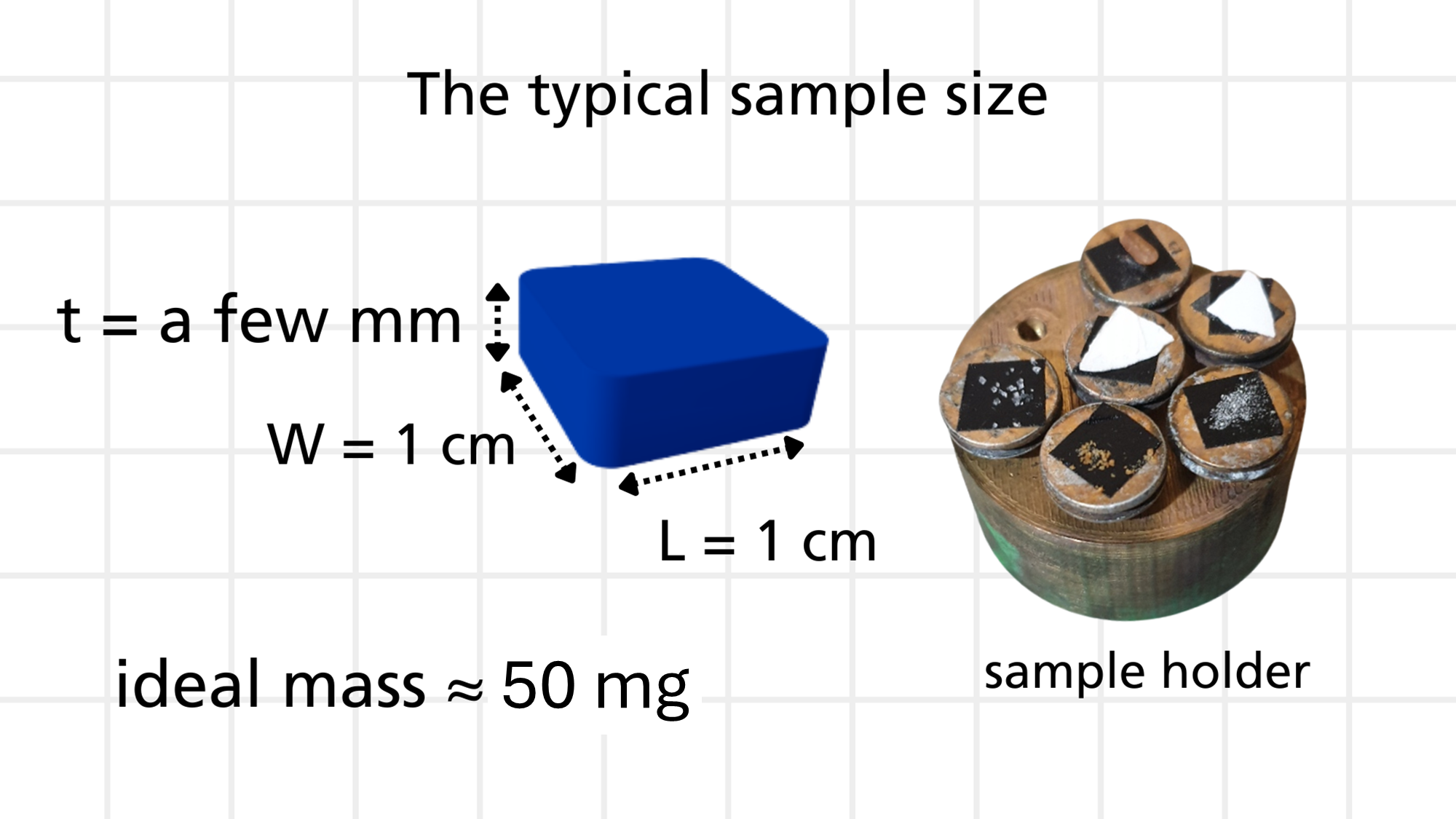
Sample Mass & Size
For best imaging and EDX analysis, submit small, solid samples. A typical sample should have a surface area of around 1 cm² and a thickness of a few millimeters. Only a small amount of material is required—an ideal mass is just a few milligrams (≈ 5 mg).
2
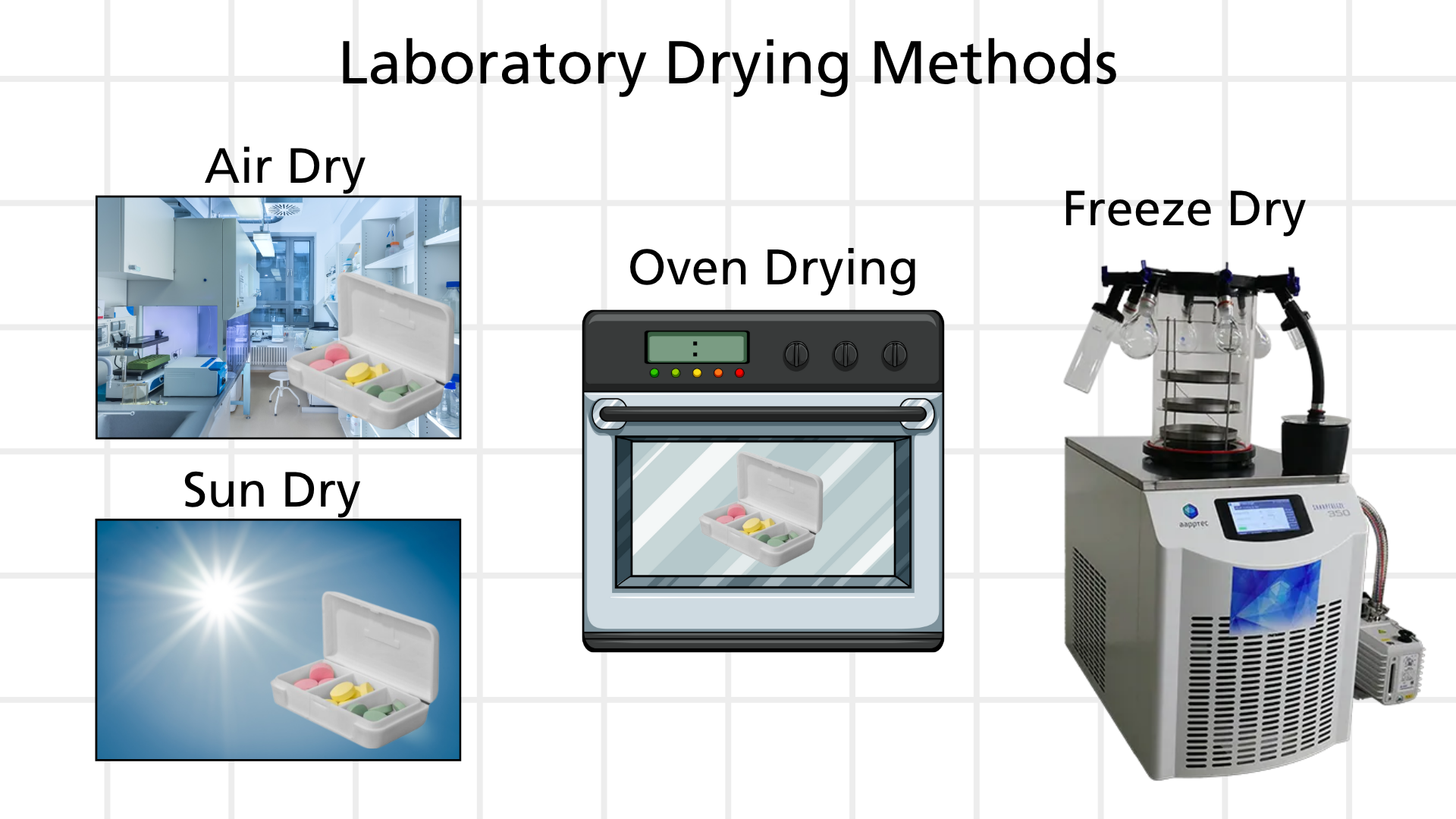
Drying
Samples must be completely dry to prevent contamination, outgassing, or damage to the equipment. Samples may be dried using methods such as air drying or sun drying, or through laboratory techniques like oven drying and freeze drying depending on your sample's characteristics. Ensuring samples are thoroughly dried helps achieve high-quality imaging and accurate elemental results.
3
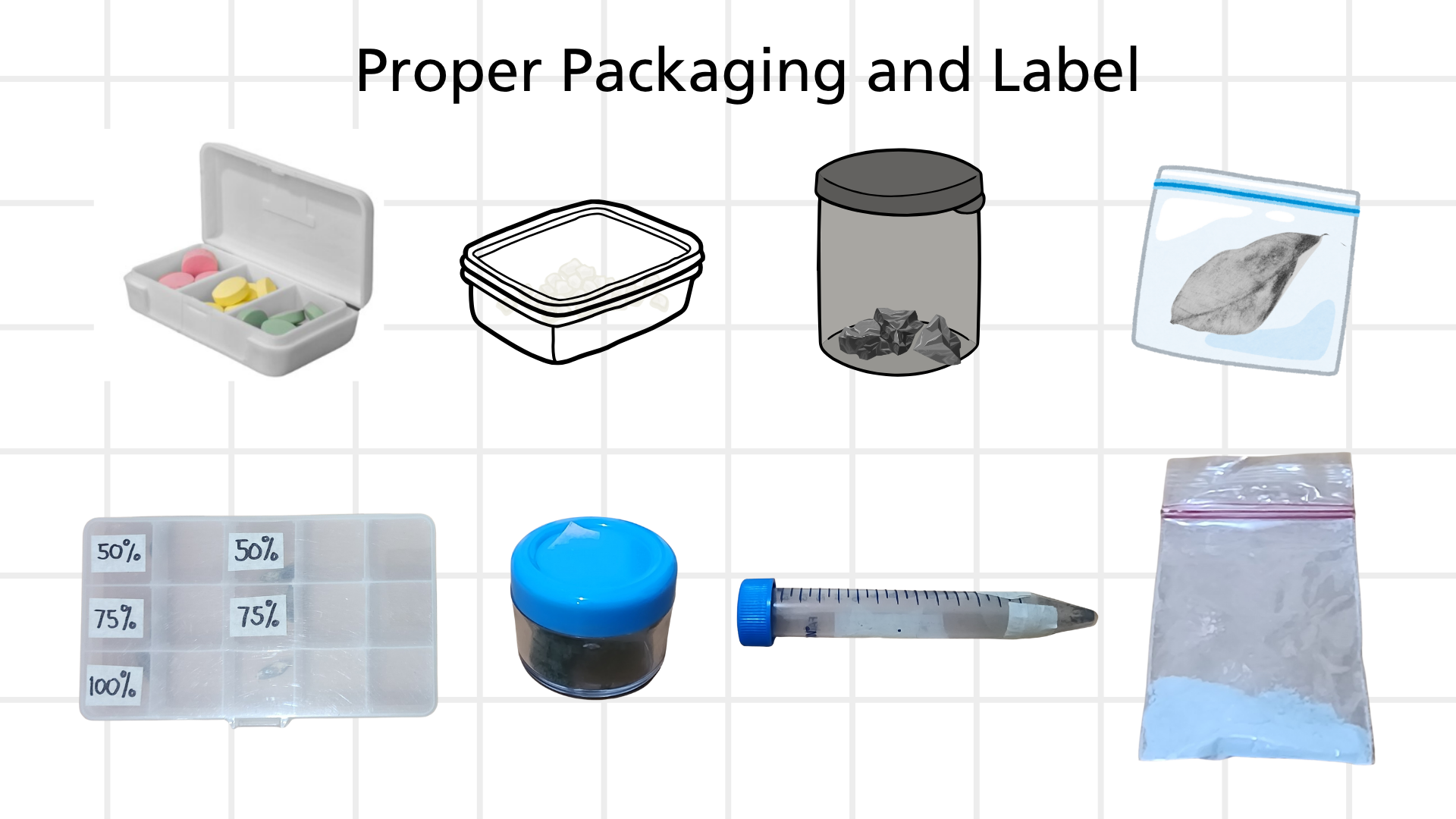
Packaging and Label
Ensure all samples are placed in clean and secure containers. Each container must be tightly sealed to prevent spills or contamination. Label every sample clearly with your name and sample code for easy identification.
⚠️ Important Note:
Contact us for guidance on unusual sample types. Email: admin@inanolab.com Mobile: 09298051084
Quick Readiness Checklist
Confirm your samples meet the basic requirements before submitting a request.
0/5 Yes selected
✅ All set! Your samples appear ready for submission.
Extras
Useful applications and resources for researchers. Tools open as separate pages within this site.
MicroMeasure
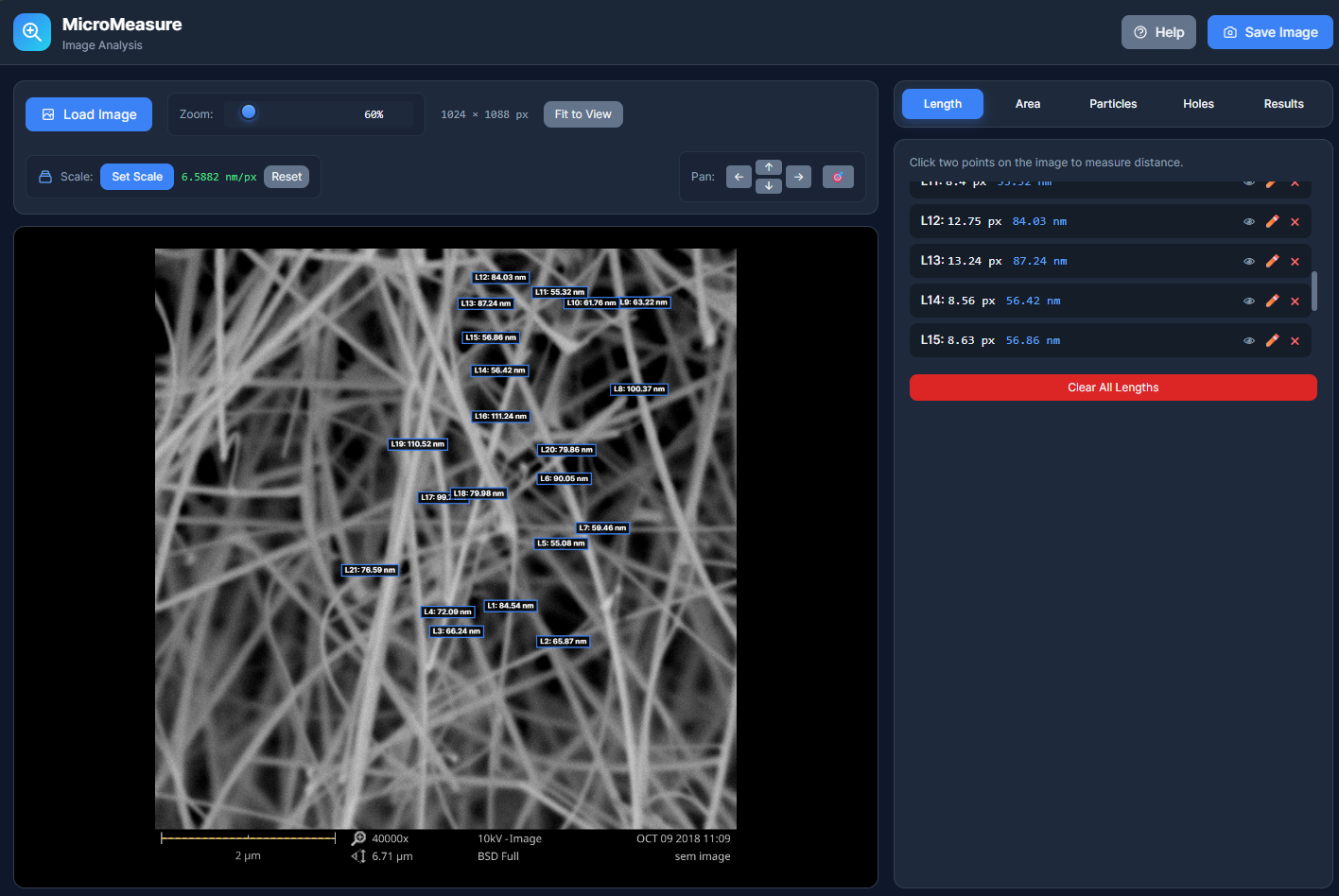
Looking for a fast and reliable way to measure features in your microscopy images without installing complex software? MicroMeasure is a browser-based scientific image analysis tool that allows researchers to perform calibrated length, angle, and area measurements, as well as automated particle and hole (pore) analysis, directly from their web browser. It combines essential image-analysis capabilities with an intuitive interface and transparent measurement methods, enabling reproducible, real-unit measurements suitable for research, teaching, and documentation. By reducing technical barriers and simplifying workflows, MicroMeasure offers a practical and accessible alternative for laboratories, educators, and students who need accurate quantitative image analysis anytime, anywhere.
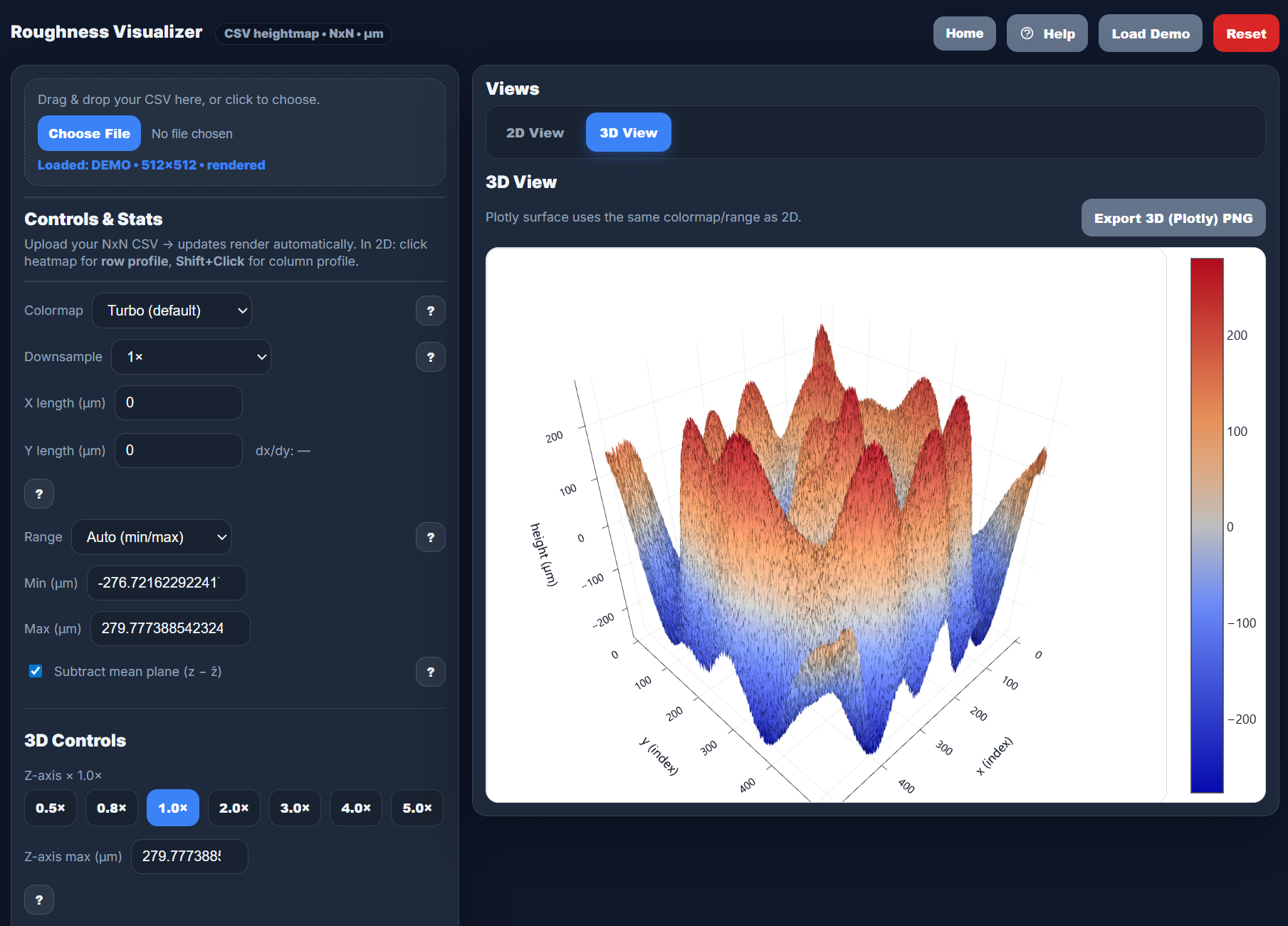
Roughness Visualizer is a browser-based tool for viewing and analyzing NxN surface heightmap CSV data. It renders a publication-ready 2D heatmap, line profiles, and histogram, plus an interactive 3D surface (Plotly), and computes common roughness statistics directly in your browser—no installation required.
Browser-basedSurface roughnessHeightmap CSV2D + 3D
Holiday Promo: 10% off with code student. Enter it in the Voucher Code below.
MicroMeasure — Quick Tutorial
Watch the short walkthrough and review key features.
Tip: Use full screen for small screens.
About
Version: 1.0 Website:https://www.inanolab.com/micromeasure.html Developer / Programmer: Dr. James Salveo Olarve Affiliation: i-Nano Research Facility, De La Salle University Manila
📚 Citation Recommendation
If you use MicroMeasure in academic work:
Olarve, J. S. L. (2026). MicroMeasure: A web-based image analysis and measurement tool. i-Nano Research Facility, De La Salle University Manila. Retrieved from
https://www.inanolab.com/micromeasure.html
(Updated citation will be provided once DOI is assigned.)
What MicroMeasure Is
MicroMeasure (implemented almost entirely in micromeasure.html) is a browser-based measurement + image-analysis tool aimed at microscopy images (e.g., SEM). It runs fully client-side (no install), drawing the image on one canvas and all annotations/analysis overlays on a second canvas.
Core Workflow Features
Load image: via “Load Image” file picker or drag & drop onto the viewer. When no image is loaded, tapping/clicking the viewer triggers the file picker (mobile-friendly).
Guided status badge: walks users through Load an image → Set the scale → Make a measurement, then hides once completed.
Help / Documentation modal: “Help” opens built-in documentation with quick start, tool explanations, shortcuts, and export guidance.
Navigation (Viewing the Image)
Zoom: slider (50–300%), mouse wheel zoom, and mobile pinch behavior.
Pan: buttons (← ↑ ↓ →) + 🎯 reset pan; keyboard arrows; middle-mouse drag or Alt+drag; two-finger drag on touch.
Fit to View: automatically scales/centers the image; re-applies on resize/orientation changes.
Scale Calibration (Pixel → Real Units)
Click Set Scale, then click two points across a known scale bar.
Enter known length and select unit (nm / μm / mm), then save.
After calibration, all measurements show px + real units; min-area thresholds switch to real-unit mode.
Manual Measurement Tools
Length: click two points to create L1, L2…; show/hide, edit, delete; “Clear All Lengths”.
Angle: click three points (2nd is vertex) to create Ang1, Ang2…; show/hide, edit, delete; “Clear All Angles”.
Area: click multiple points to define polygon; close to finalize A1, A2…; edit vertices; “Clear All Areas”.
Holes: similar workflow tuned for voids; purple boxes + summary stats + ECD histogram.
Results & Export
Each measurement tab provides its own export controls.
Copy TSV and Download TSV export the current tab’s data for Excel/Sheets.
Save Image exports PNG with overlays (enabled when applicable).
Reset clears measurements/analysis/ROI and resets calibration.
Roughness Visualizer — Documentation
Overview of inputs, outputs, and basic workflow.
Tip: The in-app Help button contains full documentation.
About
Website:https://www.inanolab.com/roughness.html Developer / Programmer: Dr. James Salveo Olarve Affiliation: i-Nano Research Facility, De La Salle University Manila
What It Does
Loads an N×N heightmap from CSV (surface data grid).
Visualizes 2D heatmap + profiles + histogram.
Renders an interactive 3D surface (Plotly).
Computes common roughness statistics (e.g., Sa, Sq, Sz).
Quick Start
Click Load CSV (or drag & drop) to import a square grid.
Use Colormap, Range, and Downsample to adjust display/performance.
Use Export PNG buttons to save figures and tables.